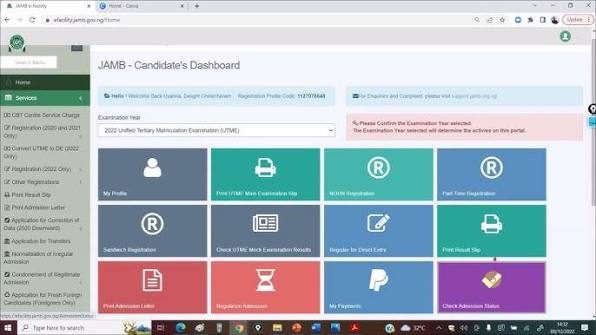
The JAMB CAPS (Central Admissions Processing System) is the most important online tool for every tertiary institution applicant in Nigeria. Introduced by the Joint Admissions and Matriculation Board, CAPS ensures that institutional admissions are transparent, fast, and fair.
Whether you are seeking admission into a university, polytechnic, or college of education, you must know how to navigate this portal. This complete, easy-to-read guide covers everything you need to know about JAMB CAPS, how to access it on your mobile device, and how to resolve common tracking issues.
What Exactly is JAMB CAPS?
JAMB CAPS is a digital platform where admissions are processed, monitored, and finalized. In the past, schools could offer admission independently without central regulation. Today, no admission is valid unless it goes through JAMB CAPS.
Through this portal, you can monitor your screening status, accept or reject admission offers, request course transfers, and verify your academic data.
How to Login to JAMB CAPS (Step-by-Step)
Many students struggle to find the actual CAPS dashboard because it is housed inside the main e-Facility profile. Follow these exact steps to log in smoothly:
1. Visit the Official Portal: Go straight to the official website at [https://efacility.jamb.gov.ng](https://efacility.jamb.gov.ng).
2. Enter Your Credentials: Type in the email address and password you used during your UTME registration. Click Login.
3. Locate the CAPS Link: On your dashboard, scroll down through the grid of options and look for the icon labeled “Check Admission Status”. Click on it.
4. Select Your Exam Year: Choose your current examination year (e.g., 2026) and input your UTME registration number in the required field.
5. Access the CAPS Mainframe: Click on the button that says “Access my CAPS”. This will take you to your personal central admission processing profile.
Crucial Mobile Phone Tip: If you are accessing the portal via a smartphone (Chrome, Safari, or Phoenix browser), the page might look blank or show an error. To fix this, click on your browser’s menu settings (usually three dots in the top corner) and turn on “Desktop Site” or “Desktop View”. This exposes the hidden side navigation menu!
Key Features on Your JAMB CAPS Dashboard
Once you are successfully logged into the main CAPS interface, you will see a sidebar menu with several tabs. Here is what each tab does:
My Profile: Displays your basic personal data, including your name, state of origin, gender, and UTME score.
My O’Level: This is a vital section. It shows the WAEC, NECO, or NABTEB grades tied to your profile. If this page is empty, your admission process will automatically stop.
Admission Status: This is where you see if you have been offered a slot. It will display statuses like Not Admitted, Admission in Progress, or Admitted.
Marketplace: If your score is high but your primary choice school cannot take you, other institutions looking for candidates can pick you from this digital marketplace.
Transfer Approval: If a school wants to change your original course to a different one due to competitive limits, the offer will appear here. You must accept it here before your status can change on the main admission tab.
Common JAMB CAPS Statuses Explained
As schools upload their merit and supplementary lists, your Admission Status tab will show different messages. Here is what they mean:
Status MessageWhat It Realistically MeansWhat Action to Take
Not Admitted The school has not uploaded your batch yet, or you haven’t met the criteria.Continue monitoring; check if your O’levels are properly uploaded.
Admission in Progress The school wants to admit you. Your file is currently undergoing a validation check by JAMB.Wait patiently and keep checking daily. Do not pay anyone to change it.
Recommended Your chosen institution has cleared your profile, and it is awaiting final approval from the JAMB desk officer.You are 90% close to success. Keep monitoring your portal.
Approved / Admitted JAMB has given final approval. You have been officially offered a provisional slot.Immediately click “Accept Admission” and print your admission letter.
How to Check and Fix Missing O’Level Results on CAPS
JAMB enforces a strict policy: No O’level upload, no admission. Follow these steps to make sure your results are intact:
1. Log into your CAPS dashboard using the steps outlined above.
2. Click on the ‘My O’Level’ tab.
3. Check if your subjects and grades are listed correctly.
4. If you see “No Result Found” or a completely blank screen, your profile is incomplete.
How to Fix It: You cannot upload O’level results by yourself using a phone or personal computer. You must physically visit any accredited, independent JAMB CBT Centre near you. Take your original WAEC/NECO/NABTEB statement of result along, pay the standard processing fee, and request a digital upload. The changes usually reflect on your CAPS dashboard within 24 to 48 hours.
Summary Security Advice for Applicants
Your JAMB CAPS portal is the key to your tertiary education. Protect it by keeping your login password confidential. Avoid logging into your profile at public cyber cafes without ensuring you sign out safely afterward.
Check your portal at least twice a week during the active admission window, keep an eye on hidden tabs like “Transfer Approval”, and always use the “Desktop Site” view to ensure you don’t miss any critical notices from your school.
most common questions students ask about the JAMB CAPS portal:
most common questions students ask about the JAMB CAPS portal:
1. Why is my JAMB CAPS showing a blank page?
If you open your CAPS on a mobile phone and see a blank white screen, it is because the portal layout is designed for computers. To fix this, open your phone’s browser (like Chrome), tap the three dots in the top-right corner, and tick the box for “Desktop Site” or “Desktop View”. The page will reload, and all your hidden menus will appear.
2. Can I accept admission on JAMB CAPS using my phone?
Yes, you can accept your admission using a smartphone, but you must switch your mobile browser to “Desktop Site” mode first. If you don’t do this, the “Accept Admission” button might be cut off or unresponsive when you click it.
3. How many times can I upload my O’level result on JAMB CAPS?
You can upload your O’level results as many times as necessary. If you registered for UTME using “Awaiting Result” (AR), or if you noticed a mistake in your grades, you can visit any accredited JAMB CBT centre to upload your results or make corrections.
4. Can I change my mind after clicking “Reject Admission”?
No. Once you click the “Reject Admission” button, the action is permanent and cannot be undone. Your slot will instantly be given to another student, and your profile will be sent back into the general marketplace pool. Never click reject unless you are 100% sure you do not want the school.
5. Does JAMB CAPS close?
Yes, the JAMB CAPS portal closes for a specific academic year once the official admission deadline for that session passes. This timeline varies depending on the school calendar, but it is always best to monitor your portal frequently and clear any issues before the general admission window wraps up.