If you want to check your admission status, accept admission, or monitor your admission progress, you must first log in to JAMB CAPS. The JAMB Central Admission Processing System (CAPS) is the official platform used by JAMB to process admissions into Nigerian universities, polytechnics, colleges of education, and other tertiary institutions. Learning how to access it correctly will help you avoid missing important admission updates.
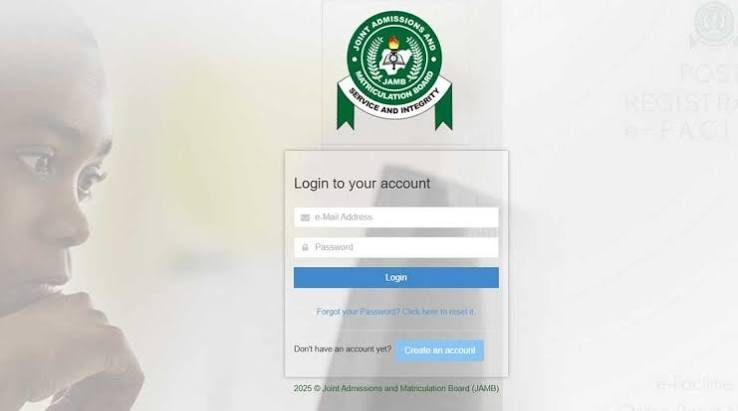
To log in to JAMB CAPS, visit https://efacility.jamb.gov.ng/, sign in with the email address and password linked to your JAMB profile, then open your CAPS dashboard through the admission section. If CAPS is unavailable on your phone, switch your browser to Desktop Site or use a computer.
What Is JAMB CAPS?
JAMB CAPS stands for Central Admission Processing System.
It is an online platform created by JAMB to make the admission process transparent and easier for both schools and candidates.
Instead of waiting only for a school’s admission list, you can use CAPS to:
- Check whether your admission has been processed.
- Accept or reject an admission offer.
- Monitor changes to your admission status.
- Know if your school has recommended you for admission.
- View your admission history.
If you applied through UTME or Direct Entry, CAPS is one of the most important portals you should check during the admission period.
Official JAMB CAPS Login Portal
Always use the official JAMB website.
JAMB e-Facility Portal
After logging in, you can access your CAPS dashboard.
Avoid websites that ask for your JAMB password or promise to “upgrade” your admission status. JAMB does not authorize third-party websites to manage your CAPS account.
Requirements Before You Can Login
Before trying to log in, make sure you have:
- Your registered email address.
- Your JAMB password.
- A smartphone or computer with internet access.
- A supported browser such as Chrome, Edge, or Firefox.
- A stable internet connection.
If you no longer remember your password, you will need to reset it before accessing your account.
Step-by-Step Guide to Login to JAMB CAPS
Step 1: Visit the JAMB Portal
Open your browser and type:
Always check that the website begins with https:// and ends with jamb.gov.ng.
Step 2: Click “Login”
On the homepage, click the Login button.
Step 3: Enter Your Details
Input:
- Your registered email address.
- Your password.
Ensure you use the same email used during JAMB registration.
Step 4: Open Your Dashboard
After logging in successfully, your JAMB profile dashboard will appear.
This dashboard contains several services, including admission-related options.
Step 5: Access JAMB CAPS
Locate the Admission or CAPS section and open it.
If you are using a mobile phone and cannot find CAPS:
- Open your browser menu.
- Select Desktop Site or Desktop Mode.
- Refresh the page.
Many mobile browsers hide some CAPS features unless Desktop Mode is enabled.
How to Login to JAMB CAPS on Your Phone
Many students believe CAPS only works on a computer.
That is not true.
You can use your Android phone or iPhone if you:
- Open Chrome.
- Visit https://efacility.jamb.gov.ng/.
- Enable Desktop Site.
- Login normally.
- Open the CAPS page.
If the page still refuses to load properly, try using another browser or a computer at a CBT centre or cyber café.
Why JAMB CAPS Uses Desktop Mode
The CAPS interface was originally designed for larger screens.
Because of this:
- Some menus disappear on mobile view.
- Important buttons may not display.
- The admission page may appear blank.
Desktop Mode forces the browser to load the complete version of the website, giving you access to all CAPS features.
What You Can Do After Logging Into JAMB CAPS
After accessing CAPS, you can:
- Check your admission status.
- Accept admission.
- Reject admission.
- View admission history.
- Monitor admission progress.
- Check whether your school has recommended you.
- See if your course has been changed.
Checking CAPS regularly helps you respond quickly when your admission status changes.
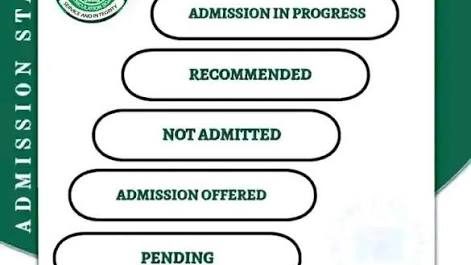
Understanding the Different JAMB CAPS Statuses
Many candidates panic when they see a new status on CAPS. In most cases, the status simply tells you the stage your admission has reached.
Here are the most common CAPS statuses and what they mean.
1. Admission Not Yet Offered
This means JAMB has not offered you admission at the moment.
It does not automatically mean you have been rejected.
Possible reasons include:
- Your school has not started uploading admissions.
- Your application is still under review.
- JAMB has not processed your school’s recommendation.
- Your admission is still being considered.
What to do:
- Keep checking CAPS regularly.
- Monitor your school’s admission updates.
- Ensure your O’Level result has been uploaded to JAMB.
2. Admission in Progress
This means your admission is currently being processed.
Usually, your school has already submitted your details to JAMB, but the admission process has not been completed.
What to do:
- Be patient.
- Do not reject or alter anything on your profile.
- Continue checking your CAPS every few days.
3. Admission Recommended
This is a positive sign.
It means your institution has recommended you for admission, and JAMB is processing the recommendation.
However, it is not yet your final admission.
Wait until CAPS changes to Congratulations before celebrating.
4. Congratulations
This is the best status you can see.
It means JAMB has officially offered you admission.
Once this appears, you should:
- Accept the admission on CAPS.
- Print your JAMB Admission Letter when available.
- Print your JAMB Result Slip if required.
- Visit your school’s admission portal for acceptance fee and clearance instructions.
5. Not Admitted
This status simply means no admission has been offered at that time.
It does not always mean your admission journey has ended.
Some schools release admissions in batches, so your status may still change later if you meet the admission requirements.
How Often Should You Check JAMB CAPS?
There is no fixed timetable.
During the admission season, checking once every two or three days is usually enough.
Checking every hour will not make your admission appear faster because updates depend on:
- Your institution.
- JAMB’s processing.
- Your faculty or department.
- Available admission slots.
Common Login Problems and How to Fix Them
Wrong Email Address
Many candidates accidentally use a different email from the one linked to their JAMB profile.
Always log in with the exact email used during UTME or Direct Entry registration.
Forgotten Password
If you cannot remember your password:
- Visit https://efacility.jamb.gov.ng/
- Click Forgot Password.
- Enter your registered email address.
- Follow the instructions sent to your email.
- Create a new password and log in again.
CAPS Page Not Opening
This usually happens because:
- Desktop Mode is not enabled.
- Your internet connection is unstable.
- JAMB servers are busy.
- Your browser has cached an old version of the page.
Try these solutions:
- Refresh the page.
- Enable Desktop Site.
- Clear your browser cache.
- Try another browser.
- Log in later if the server is busy.
Invalid Login Details
If you repeatedly receive an “Invalid Email or Password” message:
- Check for typing mistakes.
- Make sure CAPS LOCK is off.
- Reset your password if necessary.
- Use the registered email, not another email address.
Common Mistakes Students Make
Many admission delays are caused by avoidable mistakes.
Some of the most common include:
- Logging into fake JAMB websites.
- Using the wrong email address.
- Forgetting their password and creating a new JAMB account instead of resetting it.
- Ignoring CAPS after checking only their school’s admission list.
- Failing to upload their O’Level result to JAMB.
- Assuming “Admission Not Yet Offered” means permanent rejection.
- Checking CAPS without enabling Desktop Mode and concluding that it is not working.
Avoiding these mistakes can save you unnecessary stress throughout the admission process.
Things Most Students Don’t Know About JAMB CAPS
Many candidates only log into CAPS to check if they have been admitted. However, the platform does much more than that.
Here are some important facts many students don’t know:
Your School Cannot Complete Admission Without JAMB CAPS
Even if your school publishes your name on its admission list, your admission is not fully valid until it is processed through JAMB CAPS and you receive an admission offer there.
CAPS May Update Before the School Website
Some institutions upload admission recommendations to CAPS before updating their own admission portal. This means you may see a new status on CAPS before your school’s website reflects it.
Admission Is Released in Batches
Many universities do not admit all qualified candidates at once. First, second, third, supplementary, and even merit or catchment batches may be released over several weeks or months.
If you are not admitted in the first batch, continue checking your CAPS.
Your O’Level Upload Matters
If your WAEC, NECO, or NABTEB result has not been uploaded to JAMB, your admission may be delayed even if your school has recommended you.
Always confirm that your O’Level result is correctly uploaded and visible on your JAMB profile.
CAPS Is Used for Both UTME and Direct Entry
Direct Entry candidates should also monitor their CAPS regularly because admissions are processed through the same platform.
What Should You Do After Logging Into JAMB CAPS?
Your next step depends on what you see.
If You See “Congratulations”
- Accept your admission immediately.
- Print your JAMB Admission Letter when available.
- Print your JAMB Original Result Slip if your school requires it.
- Visit your school’s admission portal.
- Pay your acceptance fee before the deadline.
- Prepare your clearance documents.
If You See “Admission in Progress”
- Do not panic.
- Continue checking every few days.
- Avoid making unnecessary changes to your JAMB profile.
- Monitor your school’s admission announcements.
If You See “Admission Recommended”
This is a positive sign.
Simply wait for JAMB to complete the admission process. In many cases, the status later changes to Congratulations.
If You See “Not Admitted”
Don’t assume admission is over.
Instead:
- Keep checking CAPS.
- Confirm that your O’Level result has been uploaded.
- Check whether your school is still releasing admission batches.
- Follow updates from your institution.
Frequently Asked Questions
Can I log in to JAMB CAPS without my registration number?
Yes. You log in using the email address and password linked to your JAMB profile, not your registration number.
Can I use my phone to access CAPS?
Yes. Simply visit https://efacility.jamb.gov.ng/ and enable Desktop Site in your browser if necessary.
Why can’t I find the CAPS menu?
This usually happens because you are using the mobile version of the website. Enable Desktop Mode or use a computer.
How often should I check CAPS?
Checking every two or three days during the admission period is enough. There is no need to refresh the page every hour.
Can someone else accept admission for me?
Yes, if they have access to your account. However, for security reasons, it is safer to log in and complete the process yourself.
Is CAPS free?
Yes. Accessing and checking your JAMB CAPS is completely free. You only need an internet connection.
Can my admission change after I reject it?
Rejecting admission can have serious consequences. In many cases, you may lose that admission opportunity permanently, so reject an offer only if you are certain.
Does CAPS work all year?
Yes, but it is most active during the admission season when institutions are processing admissions.
Final Advice
JAMB CAPS is one of the most important tools every admission seeker should understand. Instead of relying only on rumours or your school’s admission list, make it a habit to check your CAPS regularly through the official portal: https://efacility.jamb.gov.ng/.
If you experience login problems, confirm that you are using the correct email address, enable Desktop Mode if using a phone, and avoid unofficial websites. Once you receive an admission offer, accept it promptly and begin preparing for the next steps, including printing your admission letter, paying your acceptance fee, and completing your school’s clearance process.